Changing a dental practice-management platform is more involved than installing a new application. Scheduling, imaging, documents, billing, equipment integrations and staff routines depend on it. The safest starting point is a written acceptance checklist that defines what must work on the first real patient day and what happens if the cutover fails.
Map the entire application environment
Record software versions, database location, imaging repositories, acquisition devices, scanners, printers, payment connections and user roles. Ask both outgoing and incoming vendors what can be converted and which information must stay available in a legacy archive. Confirm what licenses and administrative credentials the practice owns before setting a date.
Agree on data and record responsibilities
Identify who exports records and how they are securely transferred, verified and retained. Count agreed categories of records and sample active and older charts with authorized staff. A successful import message is not evidence that every attachment or image made the trip. Keep a verified backup and an explicit plan to recover the original environment.
Validate imaging integrations early
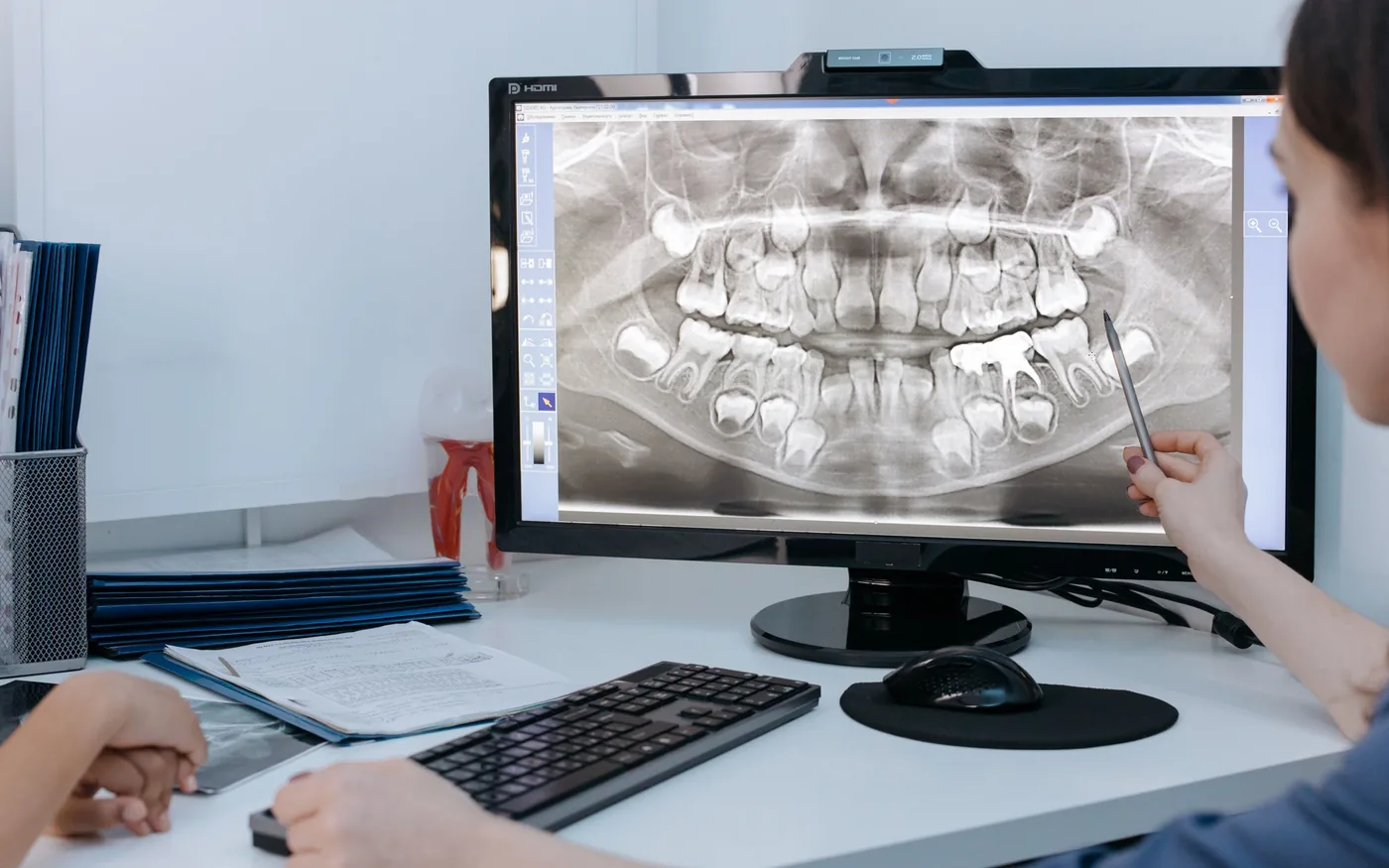
Test a representative sensor and workstation with the proposed practice-management bridge. Images may appear in acquisition software without linking to the correct chart. Check vendor-supported operating systems, drivers, network paths and licensing. Put mismatches in a written issue list while there is still time to adjust the schedule rather than improvising on migration night.
Choose a realistic cutover window
Plan around appointments, staff availability and vendor response windows. Define the last transfer, any temporary data freeze, the person who authorizes rollback and how patients will be informed if a delay occurs. A final backup should be confirmed before production data changes. Do not delete or wipe the old server because the new system launches once.
Test the tasks staff actually perform
Confirm scheduling, patient lookup, chart access, imaging, printing, reports and approved billing scenarios with people who do those jobs daily. Capture issues by room, workstation and application. Validate access controls, backups and secure remote support before releasing the system to normal use. A small supervised test group often finds problems a generic installation checklist misses.
Close with training and documented acceptance
Give staff short practice sessions and vendor escalation contacts. Record unresolved limitations, legacy-record access and the accepted rollback window. Assign responsibility for decommissioning only after the practice approves data retention and accessibility. Migration should finish with documented workflows and ownership, not merely a statement that a new software license is active.
Document the records that cannot move
Some legacy systems keep images, scanned forms or reports in proprietary formats. Ask both vendors to provide an exception list before the conversion, and have authorized clinical staff verify how each excluded record type remains accessible. Today's appointments may load correctly while a historical image or statement is still missing.
Keep the source system recoverable until the practice approves retention and accepts the new workflow. Record who controls old licensing, export tools and recovery credentials. Retirement of the previous server should be an explicit business decision following documented verification, not a cleanup task performed immediately after installation.
For guidance specific to your systems, explore the related arbor computers service .
Further reading from trusted sources
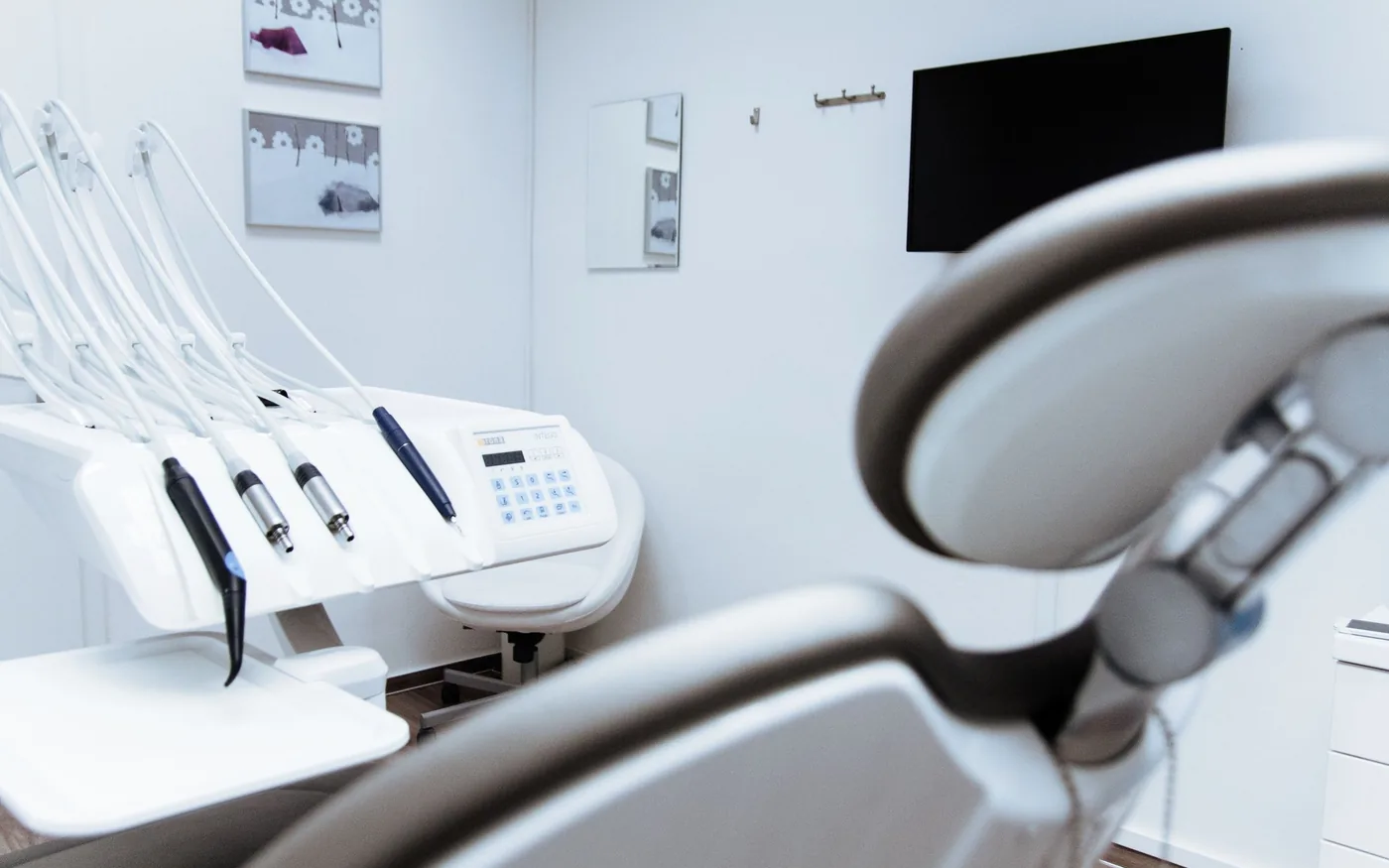
Illustrative photography by Pavel Danilyuk on Pexels . Images do not depict Arbor Computers clients or employees.