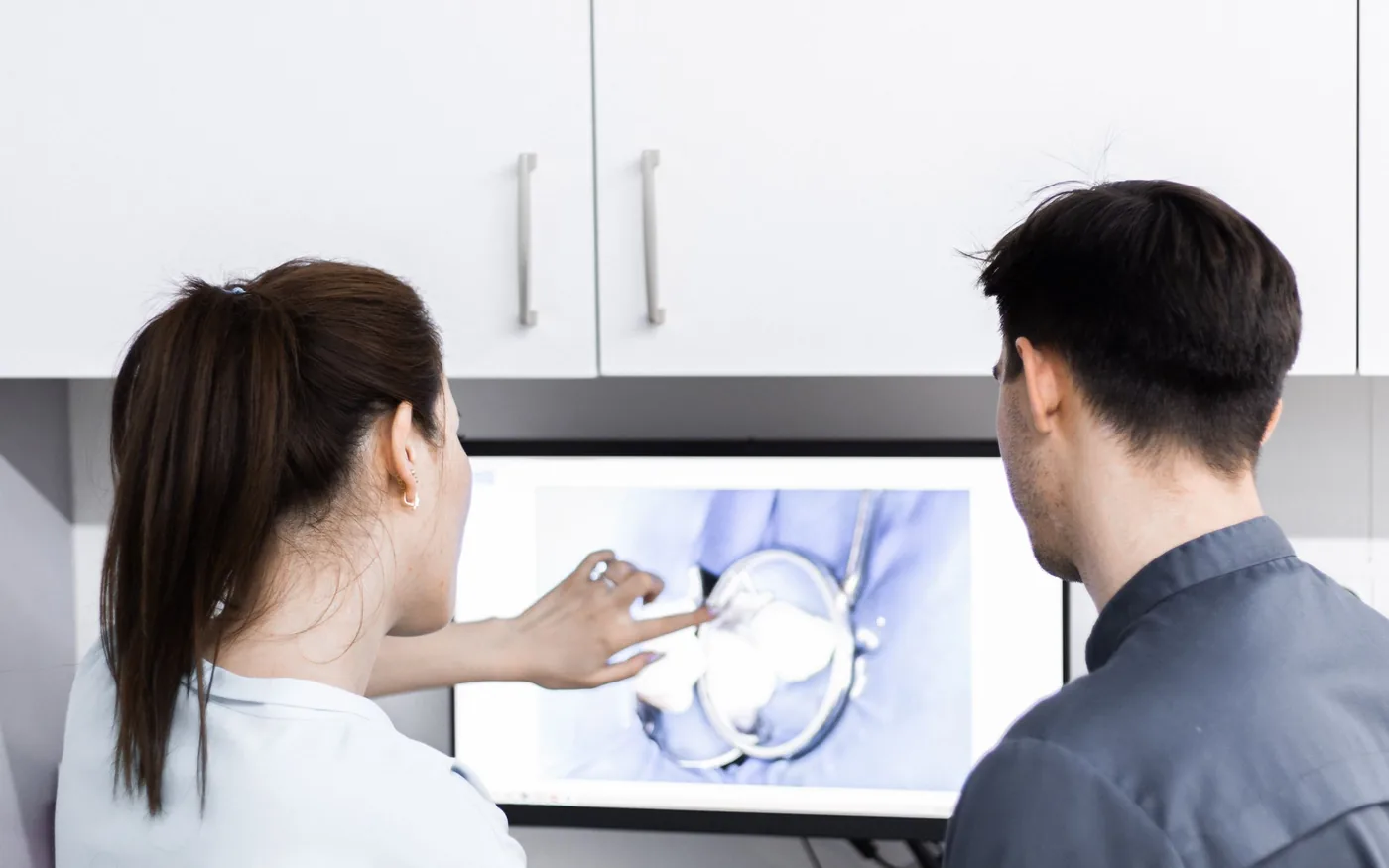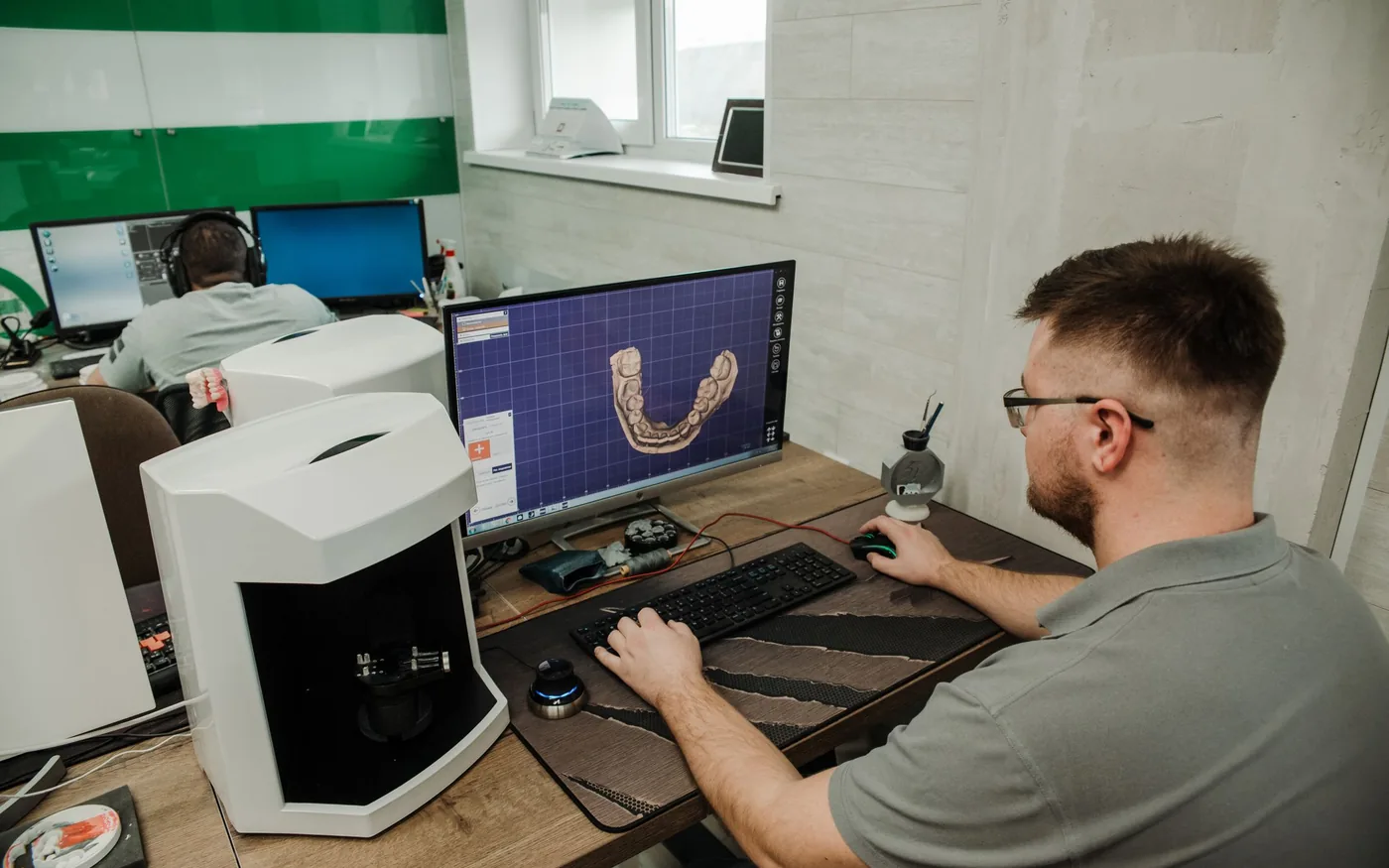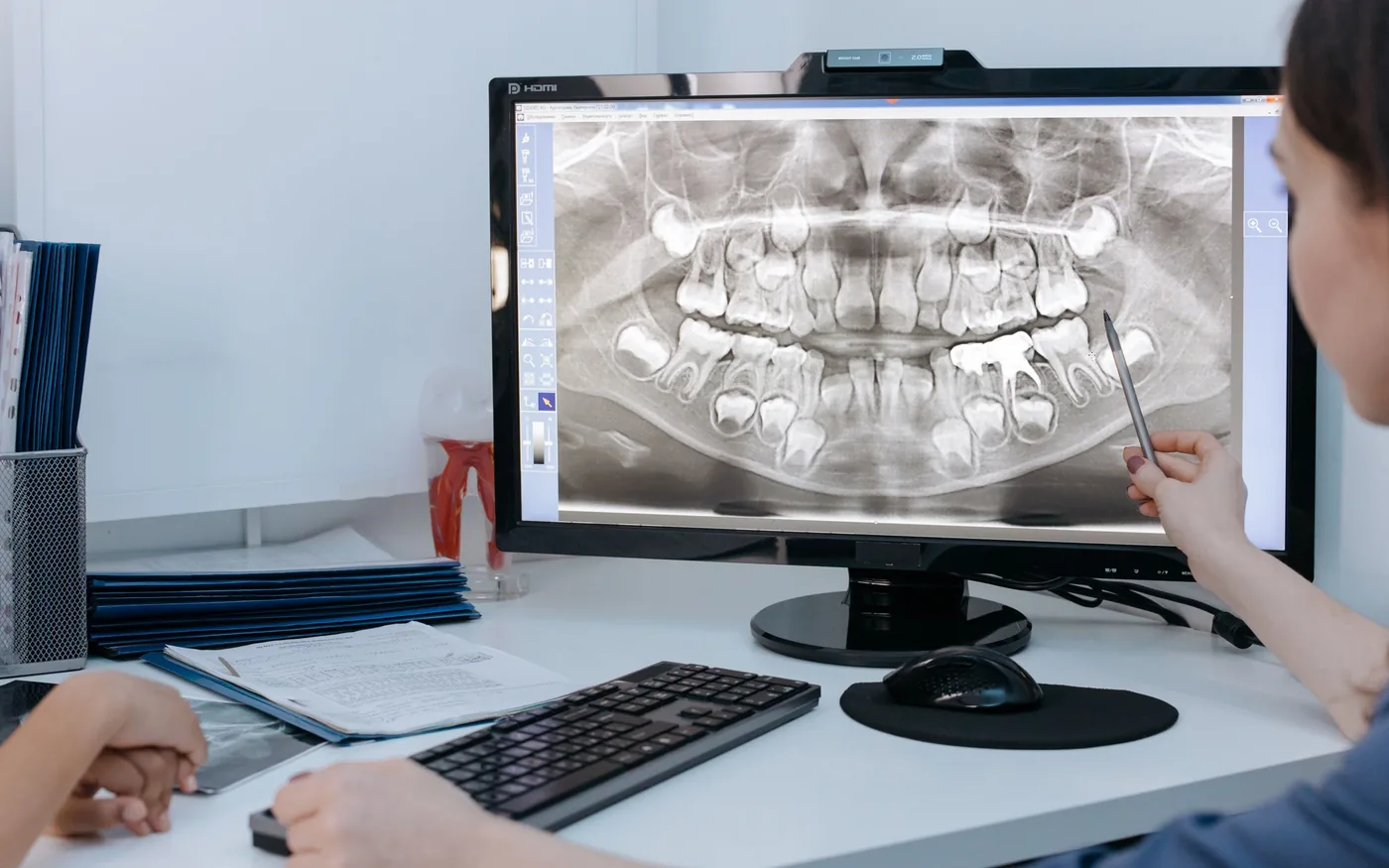
Slow X-rays do not always mean a slow computer. The delay may happen during capture, transfer to a server, chart integration, or image retrieval. Before buying equipment or reinstalling software, identify the exact step that is failing. A repeatable test protects patient information and gives dental software vendors useful evidence.
Describe the slow step
Ask the operator whether the image captures slowly, opens slowly, or fails to appear in the patient chart. Record affected room, workstation, sensor, software version, time and precise error. Compare with one unaffected operatory performing the same authorized workflow. If the issue started after a change, record what changed; do not roll back security updates blindly. Never experiment with patient images to troubleshoot.
Check workstation health
Review free disk space, memory pressure, CPU load and background work while reproducing the delay. A workstation can feel normal during scheduling but struggle while processing large scans. Compare hardware and supported software requirements with the vendor's current guidance. Replacing every PC is rarely a sensible first step; work out whether the bottleneck follows the machine or the application.
Follow the image storage path
Determine where the imaging program stores its data: locally, on a network share, on a server or in a cloud service. Check network link errors, name resolution and permissions using approved diagnostic tools. An intermittent switch port may mimic a database problem. Moving image folders without a supported procedure can break references to patients and leave incomplete records behind.
Check the integration bridge
The sensor driver, acquisition software and practice-management bridge may be separate pieces. An image visible in the acquisition application may still be missing from the correct patient chart. Capture the exact integration error, confirm vendor-supported versions, and coordinate with both software vendors. Avoid changing database permissions or registry settings without an agreed rollback plan.
Verify the entire clinical workflow
A fix is not complete because a preview becomes faster. Use a permitted test record to confirm image capture, proper patient association, retrieval and reopening after signing out. Document the result and how the office should report a repeat incident. When equipment or server changes are needed, schedule them outside appointments and retain a verified recovery path.
Escalate data integrity concerns
Missing images, mismatched patient identifiers, corrupt database files and failing storage require prompt escalation. Preserve logs and limit repeated writes to a suspected failing disk. Clinical leadership should decide safe interim workflows. Tracking the same timing metric over several days provides stronger evidence of improvement than a single successful demonstration.
How to document a repeatable test
Measure the time required to open a permitted reference image on the affected workstation and a known-good machine. Record the software version, network connection and where images are stored. Run the comparison during normal workload, not only when the office is quiet. That can reveal a shared database or storage problem that disappears during after-hours tests.
Ask staff what changed before the slowdown began: new imaging devices, software upgrades, antivirus policies, server storage or network equipment. Keep the original records protected and a rollback plan documented. If images are missing or linked to the wrong patient, escalate as a data-integrity concern rather than continuing performance experiments.
For guidance specific to your systems, explore the related arbor computers service .
Further reading from trusted sources
Illustrative photography by cottonbro studio on Pexels . Images do not depict Arbor Computers clients or employees.