Patient information is not protected by a firewall alone. Everyday work can involve shared operatories, printed documents, image transfers, temporary staff, outside vendors and hurried communication. A useful security routine makes the safer action the easiest approved action, while keeping clinical work moving.
Assign access by role
Front-desk scheduling, billing, imaging and clinical treatment have different information needs. Use individual accounts and appropriate permissions instead of a shared administrator login. Review access after a role change or departure, including remote sessions and third-party applications. Limit privileged accounts and keep emergency access procedures documented and controlled.
Protect treatment-room workstations
Set appropriate screen locking, control physical visibility and train employees to sign out or secure the workstation when they leave. Confirm what patient information is cached locally and who may repair or remove the device. Before disposal or resale, use an approved media-sanitization process consistent with the practice's retention requirements.
Keep images and documents in approved workflows
Verify patient identity and destination before exporting or sharing an image. A broken integration bridge should not lead staff to send clinical data through personal email or consumer file-sharing accounts. Confirm which secure communication methods and vendor processes the practice has approved, including how received records are attached to the correct chart.
Use layered account protection
Enable appropriate multifactor authentication where supported, maintain supported updates, secure backups and monitor unusual sign-ins. Assess the impact of changes on clinical applications before wide deployment. An unsupported imaging device might need isolation and a replacement plan; simply postponing every security change indefinitely is not a sound strategy.
Make reporting easy and immediate
Give staff a clear number or channel to report suspicious messages, lost devices, wrong-recipient email and unexpected access prompts. Record the time and basic facts without spreading potentially sensitive screenshots. Privacy and security leads should assess the situation and decide whether incident-response or notification obligations are triggered.
Understand the limits of vendor assurances
HHS describes administrative, technical and physical safeguards under the HIPAA Security Rule for regulated entities. Buying a security product or hiring an IT firm does not automatically satisfy a practice's obligations. Each organization must assess its risks, establish policies, train its workforce and seek qualified guidance for specific compliance decisions.
Review information handoffs as a team
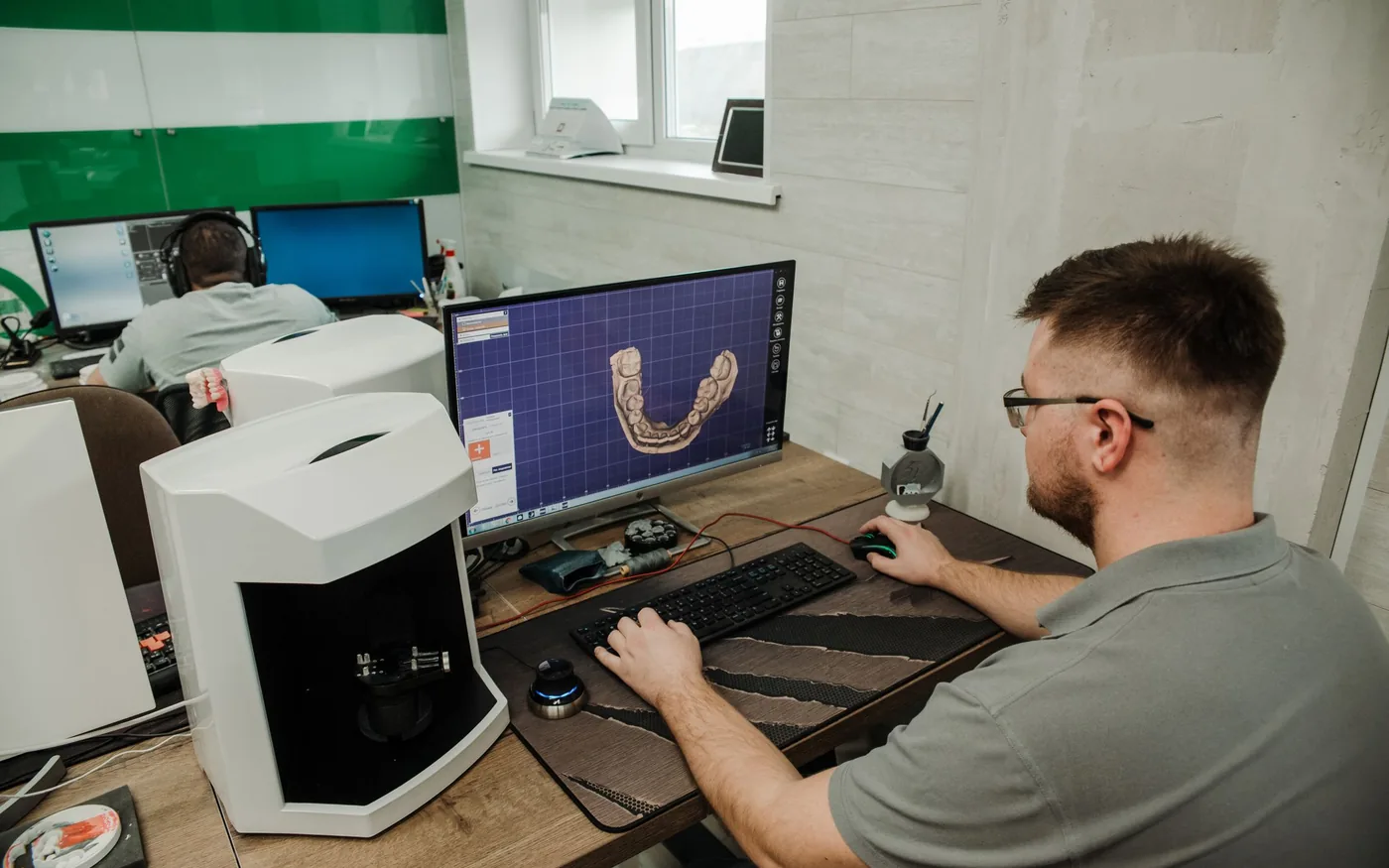
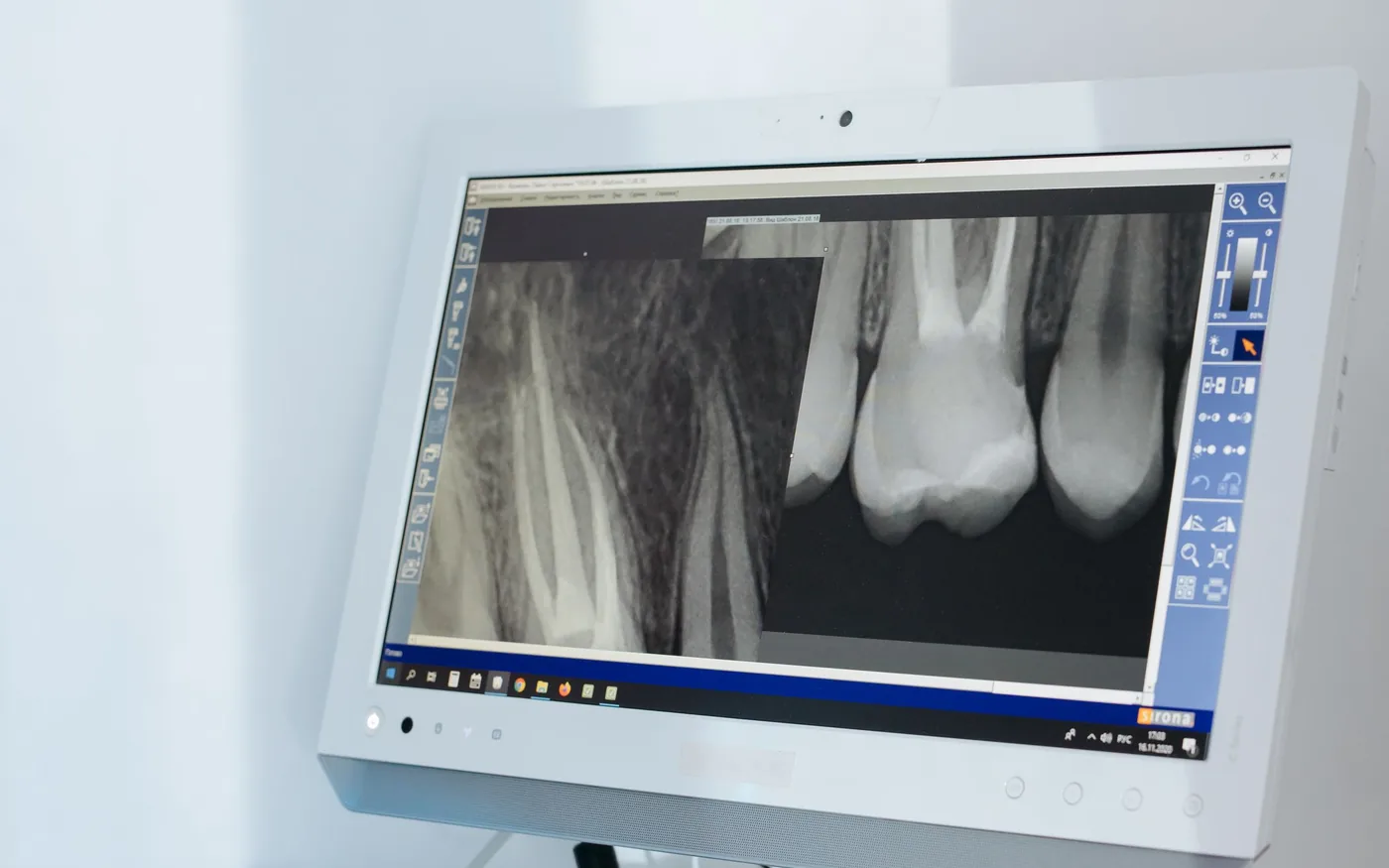
Walk through ordinary tasks such as receiving referral documents, scanning intake forms, capturing X-rays and sharing approved reports. For each handoff, identify the permitted recipient, correct patient record and application that should hold the information. A simple verification step at the right moment can be more effective than a vague reminder to be careful.
Include remote-support sessions, temporary equipment and outside vendors in the review. Clarify who is responsible for removing access after support concludes. When an integration fails, provide an approved escalation path so staff are not tempted to move patient data into personal accounts or unapproved sharing tools.
For guidance specific to your systems, explore the related arbor computers service .
Further reading from trusted sources
Illustrative photography by cottonbro studio on Pexels . Images do not depict Arbor Computers clients or employees.