A professional workstation should be designed for the applications that generate the work, not for the most expensive components on a shopping list. CAD, imaging, code compilation, video editing and office tasks stress hardware differently. A balanced build begins with vendor requirements, actual file sizes and the time saved by improving the right bottleneck.
Start with supported software requirements
List the programs, plug-ins, typical project sizes and connected displays or specialty hardware. Check manufacturer guidance for CPU features, operating-system versions, memory and professional GPU compatibility. Some applications prefer high single-thread speed while others use many cores. An impressive benchmark from another workload can be misleading.
Size memory for real projects
Consider how many programs run at once, the size of active models or media, and whether the application benefits from more RAM. Capacity is often more useful than chasing peak frequency. Confirm motherboard memory compatibility and supported module configurations; filling every slot may change achievable speeds. Leave room for growth if future projects are expected to become larger.
Choose storage by workflow
A fast SSD helps working files and application responsiveness, but a single fast drive is not a complete data protection plan. Consider separate working and archival storage when appropriate, capacity headroom and dependable backups. Large video or image workloads can need sustained performance; office productivity may not justify expensive high-end storage.
Buy graphics capability only where it helps
Some CAD, rendering and creative programs use GPUs heavily, while others rely mainly on CPU or memory. Check application certification and driver expectations when they matter. Extra graphics memory can be critical for large scenes but offer little benefit to a simple spreadsheet task. Match displays, ports and power requirements to the real environment.
Plan cooling, power and serviceability
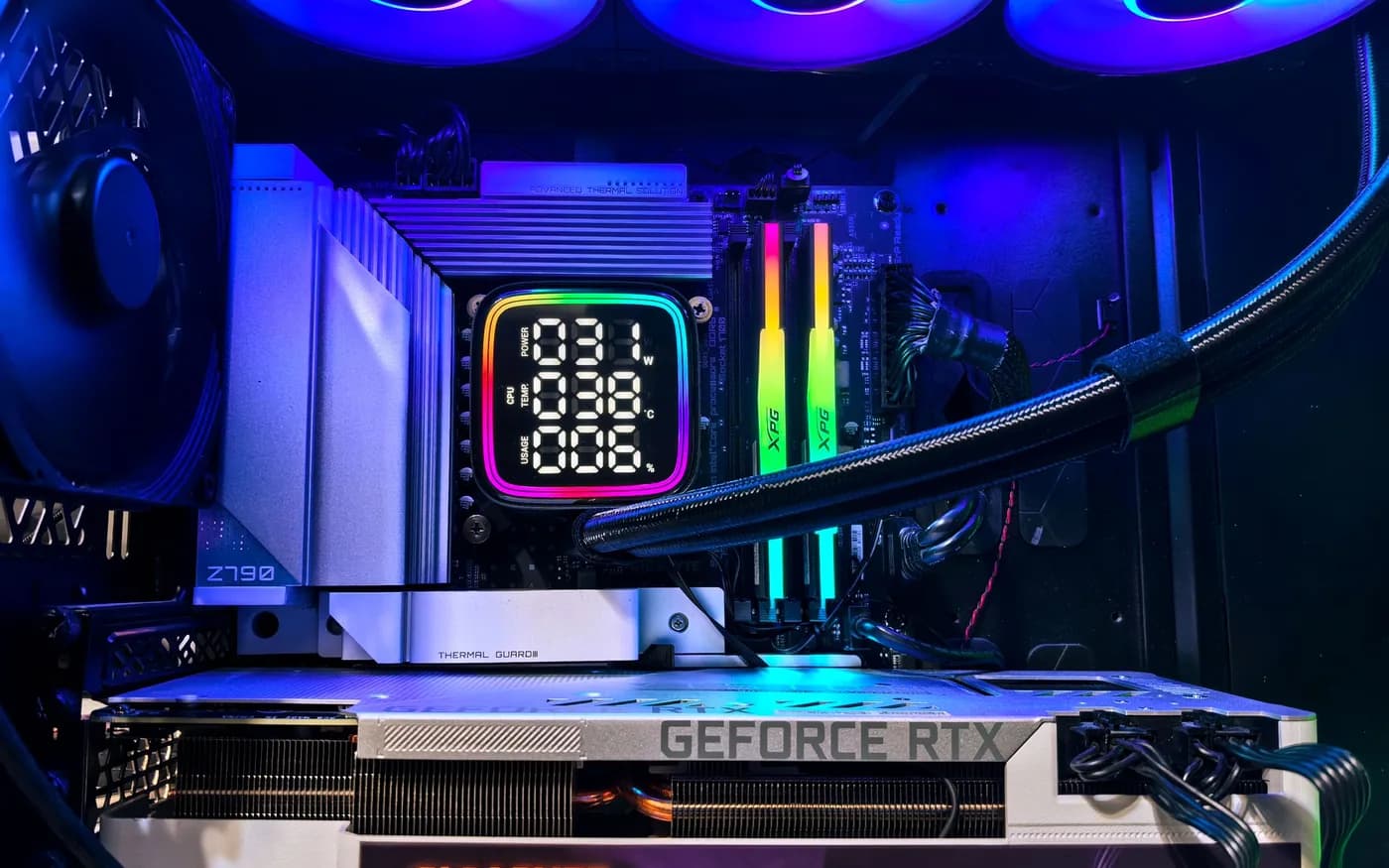
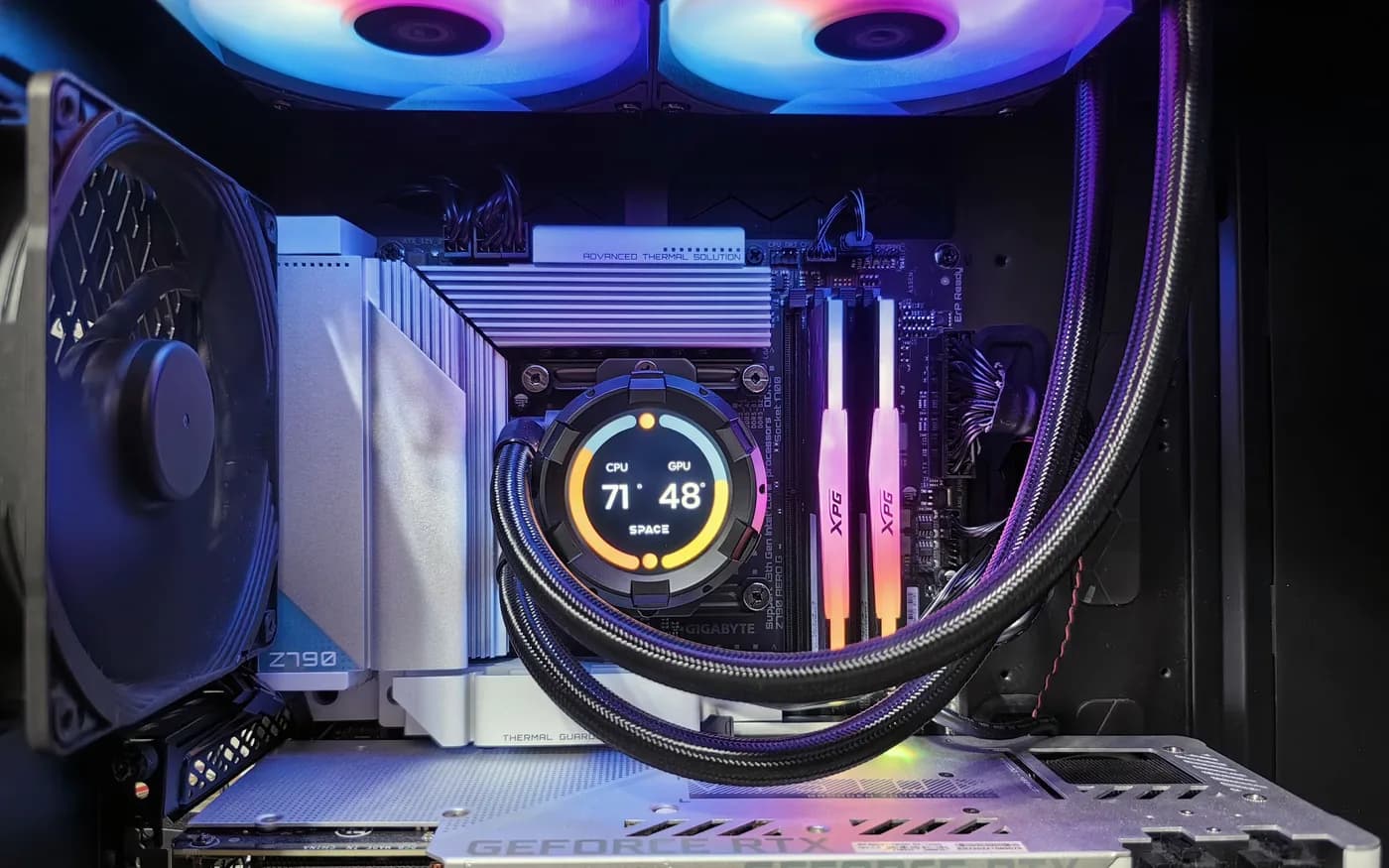
Choose a case, cooler, motherboard and power supply suitable for sustained workloads. Check physical clearances, expansion slots, noise, thermals and airflow. Stable power and maintainability matter when deadlines depend on the workstation. Avoid a spectacular-looking configuration that obstructs service or requires an unnecessarily large power supply.
Validate before handoff
Test operating-system stability, memory configuration, expected applications, display connections and backup arrangements. Document component models, licenses and warranties. The best workstation is one the user can work on confidently and upgrade sensibly as software requirements change, rather than a collection of parts chosen for appearance.
Evaluate cost over the workstation's useful life
Include application licensing, monitor connections, backup arrangements, maintenance, replacement-part availability and expected noise. A machine running long render jobs needs stable temperatures and serviceable components, not merely a high benchmark score. Discuss whether the business needs a spare workstation or a defined response plan for hardware failure.
After assembly, verify performance with a representative real project. Confirm file access, sustained workload stability and data-protection arrangements, then document drivers and component models. The best custom system is designed for work the customer actually performs and can be upgraded without replacing everything prematurely.
For guidance specific to your systems, explore professional custom pc builds .
Further reading from trusted sources
Illustrative photography by Andrey Matveev on Pexels . Images do not depict Arbor Computers clients or employees.